Export or Import a List of Users
With the Authentication Extension, you can:
- Export a list of the registered users of your app into a .csv file.
- Import an existing list of users, still with a .csv file.
- Export a list of the registered users of your app into a .csv file.
- Import an existing list of users, still with a .csv file.
1. Import an Existing List of Users into your Backend
To import an existing list of users, it must be stored in a .CSV file.
This is very important: no other format will be accepted by the backend.
This is very important: no other format will be accepted by the backend.
The file format
.csv file must start with the two mandatory columns below:
- email: the user's email, which will also be used to log into the app
- password: must be plain text in the .csv file ( "password", not "********")
The first two columns can be followed by more to associate with the fields of the user's profile at step 2.
Tip: The proper way to import the password is to import a neutral password ("changeme", for example), then ask your users to follow the password recovery procedure when they first log into the app.
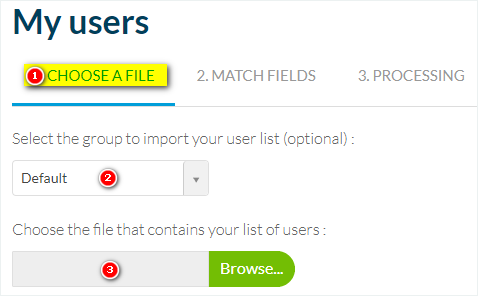
STEP 1: Choose a file
1. Go to the menu Community > User list :: Import tab
2. Select the group to import your user list from the drop-down menu (optional)
3. Select the file containing the list of your users
STEP 2: Match fields
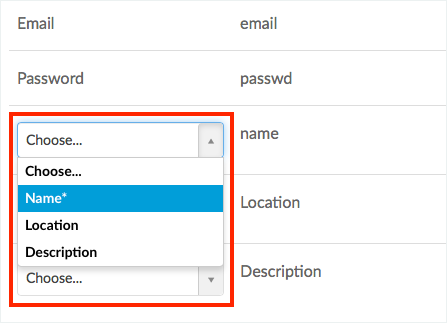
The information contained in the .csv file will be displayed in Muse mBaaS's backend:
- Match your information with the field where it will be shown.

Note: some fields are mandatory, such as email address or password, therefore you will not be able to complete the import if this information is missing from your .csv file.
STEP 3: Processing and importing the data
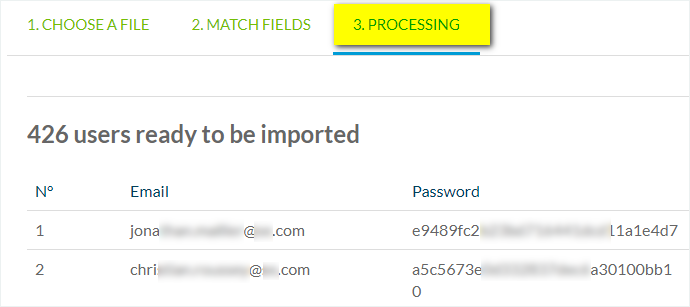
1. Check the information
2. Click "Import" to launch the data import
The amount of time for the process depends on the quantity of information you wish to import.
You will be notified by email when it is finished.
You can import up to 10,000 users at once.
Once the import is successful, all administrators of your Muse mBaaS project will be notified by email.
Note: only "Administrators" of your project will be notified, the persons with a "User" access to your back office won't receive the notification email.
Note: only "Administrators" of your project will be notified, the persons with a "User" access to your back office won't receive the notification email.
2. Export the List of your Registered Users
To export the full list of your users into a .csv file:
1. Go to the menu Community > User list
2. Click "Export data" on the top right side of the screen.
The .CSV file will be downloaded on your computer.
You will be able to retrieve all the information filled in by your users in their personal profile.

To export the list of your users from a specific group into a .csv file:
1. Go to the menu Community > User list
2. Click "Groups"
3. Click "Export" next to the group you want to export your user list from