Home Page
Your home page is the first page displayed on your app after the launching screen.
On this page, you can automatically highlight content from other pages, add call-to-actions, insert useful links and more.
You build your Home with widgets.
By default, your application is pre-filled with widgets of different types.
On this page, you can automatically highlight content from other pages, add call-to-actions, insert useful links and more.
You build your Home with widgets.
By default, your application is pre-filled with widgets of different types.
1. Setup your Home Page
1. Go to the menu Design & structure > Structure > Sections
2. Click Home from the right panel
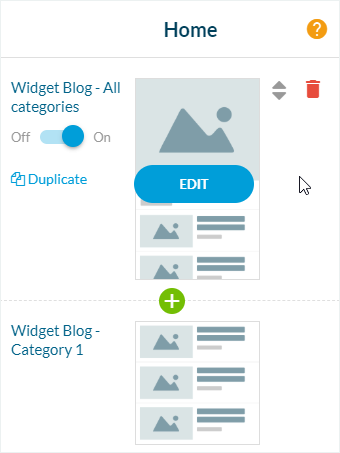
The right column shows the widgets list of your home page.
The right column shows the widgets list of your home page.

2. The List of Widgets
- Click the green "+" to add a widget
Mouse over the widget to display the following actions:
- Click the red trash to delete a widget
- Select the up/down arrows to order widgets by drag and drop
- Use the ON / OFF button to hide the widget without deleting it
- Click the "Edit" button to set the widget
- Click "Duplicate" to duplicate an existing widget
3. Add a Widget
1. Click the green "+" button
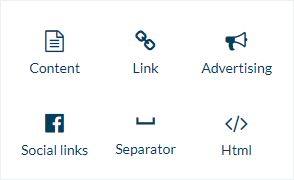
2. Select which type of widget you want
3. Set your widget

Note:
if you add or remove a section, it will automatically add/remove the widget on the Home page.
You can add up to 20 widgets to your home page.
4. Meta Tag of the Home Page - PWA SEO
The information contained in the META tags is added by search engines to their indexes but is also used to display search results concerning your Progressive Web App (PWA)
To customize your meta title and meta description of your home page:
1. Go to the menu Design & Structure > Structure > Sections
2. Click the three dots next to your home page
3. Select "Settings"
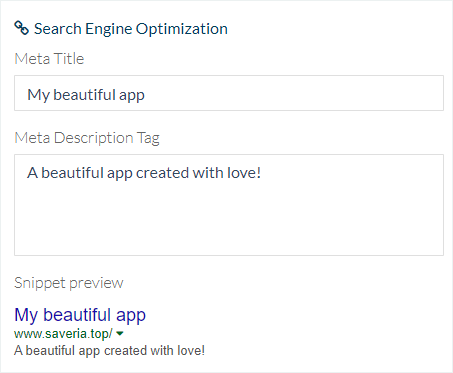
4. Scroll down on the right panel to the Search Engine Optimization bloc.
Fill in*:
- The Meta Title field
- The Meta Description field
5. Preview the search engine result
6. Click "Save"

*If you don't fill in these fields, the default Meta tags of your app will be used instead.
5. Disable the Home Page
1. Go to the menu Design & Structure > Structure > Sections
2. Click the three dots, then "Settings" in the right column of your back office
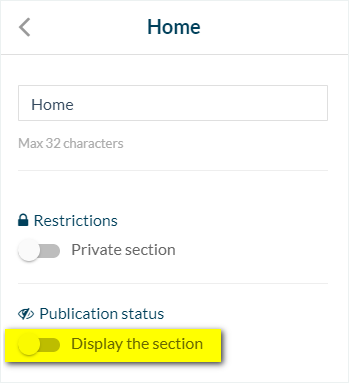
3. Disable the "Display the section" button
If the home is not displayed, the first section in the content list will be displayed first in the app.